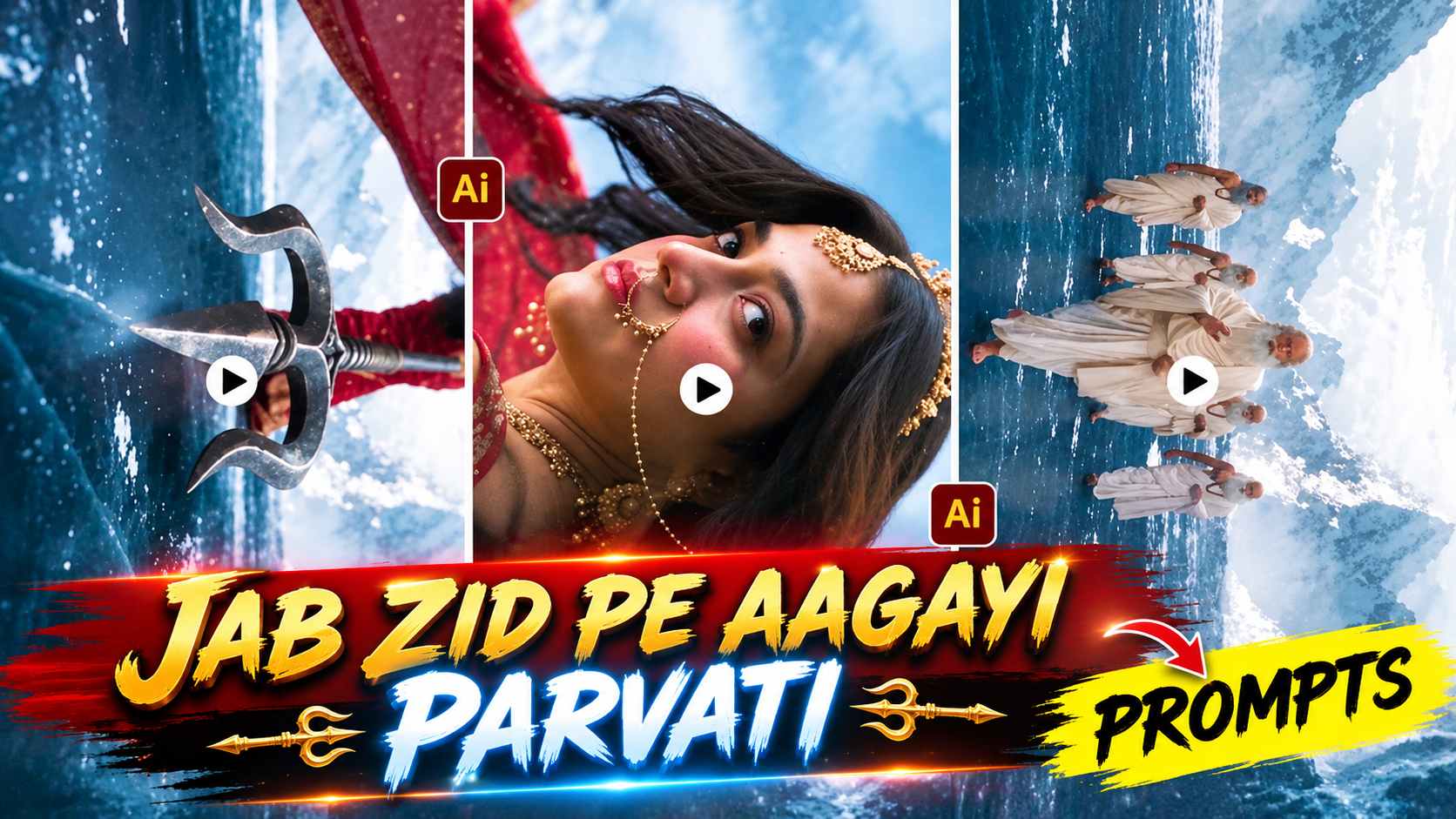
Parvati Song Ai Video Prompt – The film Hanuman Ansh, released in August 2026, initially didn’t receive much publicity, but gradually the film and its songs began to gain traction on social media. The film’s story revolves around the life of Neem Karoli Baba and his various phases, depicting his life from childhood to adolescence and beyond. Many of the film’s songs are resonating with audiences, but a specific line from the song “Parvati,” “Jab Zid Pe Aa Gayi Parvati – Parvati,” is currently going viral on social media. People are creating various AI Reels based on this song on Instagram, creating visuals based on the song’s lines. In this trend, a cinematic AI Reel is also being seen, in which scenes are shown using AI based on the song’s themes. In this type of Reel, a woman is presented as Mata Parvati, wearing a traditional Indian outfit, heavy golden jewellery, forehead decoration, a large nose ring and a divine spiritual appearance. The same character is then seen in different scenes in the Himalayan environment and cinematic surroundings. The special thing is that the scenes in the video change according to different lines of the song, such as the scene of Parvati moving forward with a trishul, the appearance of Sapt Rishis and the change in Parvati’s expression according to the emotional lines of the song.
This is why such AI-generated Reels are attracting people’s attention on Instagram. In this article, we will understand the complete process of creating such a Parvati Song AI Reel, in which first an image with Parvati’s look will be created from a reference photo with the help of ChatGPT and then the same image will be converted into different cinematic video scenes with the help of Google Flow AI.
Jab Zid Pe Aa Gayi Parvati Song AI Video Editing
The most striking aspect of the AI Reel associated with the song “Jab Zid Pe Aa Gayi Parvati – Parvati” is its scene-by-scene presentation. This isn’t a simple photo animation, but rather an effort to match the song’s lines and visuals. The video begins with a woman depicted as the divine form of Goddess Parvati. Her traditional attire, including a special forehead decoration, a large nose ring, golden jewelry, and a spiritual expression, gives the character a religious and cinematic appearance. The same character is then seen in a Himalayan setting, wearing a red or dark-red traditional saree and adorned with various golden ornaments. A crown-like head decoration and traditional jewelry further accentuate her Parvati look. When the line “Jab Zid Pe Aa Gayi Parvati – Parvati” appears in the song, Parvati can be seen walking forward with a trishul in her hand. Then, when the line about the Sapt Rishis appears, a visual connection is created with the song’s lyrics by depicting several Rishis in the scene. Parvati’s face displays a slightly serious or angry expression during an emotional line like “Kyon Hai Itni Ziddi.” Similarly, different AI scenes can be created based on the rest of the song’s lines. To create such a Reel, it’s important to first create a good reference photo, as this photo will help maintain the character’s identity and appearance throughout the video. Subsequently, different clips can be created using scene-by-scene video prompts in Google Flow AI. Generating individual scenes is more practical than creating a full, long video all at once, as each scene can be tailored to a particular line in the song. Finally, all these clips are combined in sequence in any video editing application, the Parvati song is added, and the final Instagram Reel is created by cutting the clips according to the lyrics.
How To Customize The Created Video?
Once a video is created using AI, it’s necessary to customize it slightly instead of uploading it directly to Instagram. AI-generated clips often have basic lighting, colors, and camera look, but to make the final reel more attractive, it’s better to edit it to your needs. First, import all the generated clips into an editing application and arrange them in the same sequence as you created the scenes. Next, add the Parvati song to the timeline and adjust the length of the clips while listening carefully to the different lines of the song. Place the relevant clip at the point where Parvati’s particular action or expression is shown. If the beginning or ending of a scene seems too long, it can be trimmed. Next, adjust the brightness, contrast, highlights, and saturation as needed so that the color of all the clips appears consistent and cinematic. If the lighting in a particular scene appears weak, slight lighting adjustments can be made. Similarly, slow motion, zoom, transition, or subtle cinematic effects can be applied if needed, but avoid overusing them to the point where they ruin the natural look of the original AI visuals. The most important thing is to ensure that the character’s appearance and overall color tone remain as consistent as possible across all clips. Once editing is complete, review the entire reel from beginning to end to check the timing of the lyrics and visuals. By customizing simple AI-generated clips in this way, a more polished and Instagram-ready Parvati Song Reel can be created.
Parvati Song AI Photo Prompt
The most important step before creating such an AI Reel is to create a suitable Parvati character image. You can upload your reference photo to ChatGPT and use the photo prompt below. The purpose of this prompt is to create a traditional and cinematic version of Parvati, while keeping the character’s identity in mind. Once the photo is generated, carefully check that the face, overall appearance, jewelry, clothing, and background meet your requirements. If the image is correct, this image can be used as a reference image in Google Flow AI to create different video scenes.
Parvati Song AI Photo Prompt

How to Create a Parvati Song AI Video Using Flow AI?
Generating a long cinematic video at once using AI video tools isn’t always practical these days, so creating such a Reel in smaller scenes is a better approach. Here, we’ll create a complete Reel in separate parts. First, create a suitable image of the Parvati character using the Photo Prompt above. This image can then be used as a reference image in Google Flow AI. Use a different prompt for each scene to create the video. For example, generate the first cinematic scene of Parvati from the first prompt, then, using the same reference character, create the Sapt Rishis scene from the second prompt, and then create a scene based on the next line of the song from the third prompt. This method makes it easier to control each clip individually, and later, in an editing application, all the clips can be combined according to the song to create a complete reel. Use the prompts below scene-by-scene and save each generated clip.
Scene 1 – Parvati Song AI Video Prompt
Scene 2 – Parvati Song AI Video Prompt
Scene 3 – Parvati Song AI Video Prompt
How to Use Photo and Video Prompts in Google Flow AI?
First, open Google Flow in your phone or computer browser and log in with your Google Account. Next, go to the New Project option and select the video generation option. Choose the aspect ratio that best suits your final Instagram Reel. If you want to create a vertical Reel, use the vertical format. For the reference image, upload the Parvati photo you created using ChatGPT. Then, copy and paste the video prompt from the first scene into the Flow AI prompt/chat box, and add the reference image. Create the first video clip using the Generate option. After the video is created, carefully check that the character’s look, expression, outfit, and scene match the prompt. If the first clip is correct, save it and repeat the process for the second scene. Use the second video prompt and the same suitable reference image for the second scene, then use the third prompt for the third scene. This way, you’ll end up with several short cinematic clips instead of one long video file. Now import all these clips into any editing application and arrange them in the correct order, from the first scene to the last. Then, add the Parvati song to the timeline and set the timing of each clip according to the lyrics. Apply transitions, color adjustments, slow motion, or light cinematic effects as needed, and preview the entire reel. When the timing of the video and song is right, it can be exported in high-quality and shared as a reel on Instagram. The most important aspect of this entire process is that the photo prompt creates the character’s base look, while the video prompts animate the same character in different scenes and actions. Therefore, it’s important to use both prompts correctly at each step.
Final Thoughts
The most interesting part of the viral AI reel for the Parvati song is that it doesn’t just animate a single photo, but rather attempts to create a cinematic story based on different lines of the song. In this article, we’ve explained the complete workflow for creating a similar Reel. First, we create a suitable look for Parvati from a reference photo using ChatGPT. Then, using the same character as a reference image in Google Flow AI, we create different scene-by-scene video clips. Whether it’s the Trishul scene, the Sapt Rishis’ visual, or Parvati’s expression based on an emotional line in the song—using a different video prompt for each scene can achieve a more controlled result. Then, all the clips are combined in sequence in an editing application, the Parvati song is added, and the video timing is set according to the lyrics. After some color grading, lighting adjustments, transitions, and necessary effects, the entire Reel can be given a more polished, cinematic look. If you’d like to create your own Reel in this Parvati Song AI Reel trend on Instagram, you can create a similar creative AI Reel by using the above photo and video prompts in the correct order. To get the best results, preview the generated clips thoroughly before uploading them and prepare the final reel by making small changes as needed.