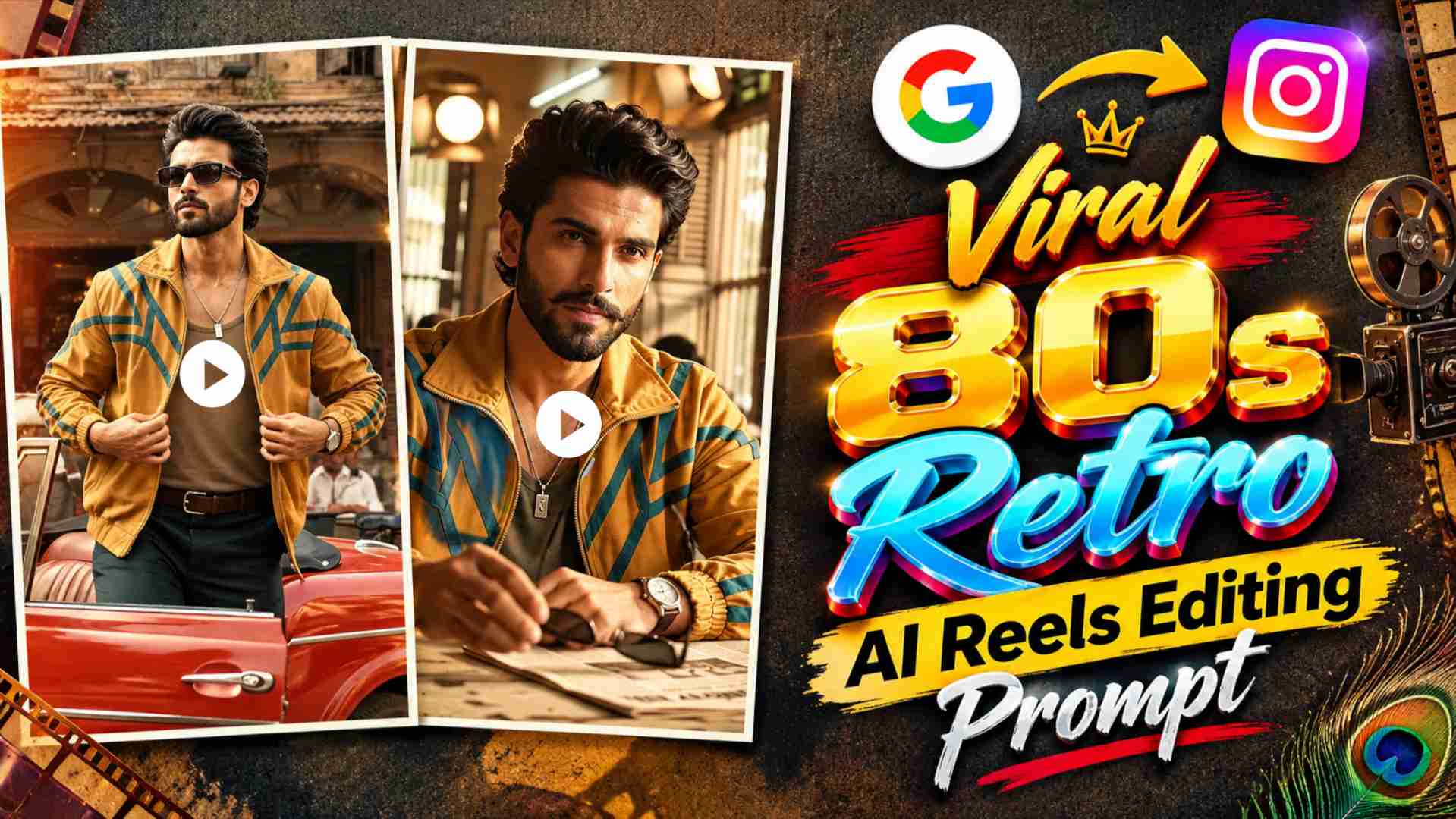
80s Retro Ai Reels Editing – These days, social media isn’t just seeing simple photo edits, but also AI videos that create a cinematic feel reminiscent of the old days. This Retro Style AI Video transforms a normal photo into a complete cinematic story, showcasing various scenes like a vintage car, old-school fashion, a café, a newspaper, a street, and a sunset. The video begins with cinematic shots of a vintage car and the main character, followed by walking and close-up moments, and then the character is seen sitting in an old-style café. Further visuals, such as a newspaper-reading scene, outdoor shots with the car, and a cinematic frame at sunset, give the video a complete retro-era atmosphere. The entire video combines warm vintage color grading, an old-camera-like visual feel, and cinematic camera movements, making it feel like part of a short film from a bygone era. The unique feature of this video is that there’s no need to shoot individual scenes or manually edit each shot. With Google Flow AI, you can generate a similar complete cinematic sequence using a video prompt by adding a photo as a reference. This article will explain the concept of this Retro AI Video and the entire process of creating one using your photo and a video prompt in Google Flow AI in a simple way.
About Retro Style AI Video
This Retro Style AI Video isn’t just a simple photo animation; it creates a complete visual story by depicting a single character in different cinematic situations and locations. The main character’s overall appearance in the video is kept in line with old-school fashion and vintage personality, while the surrounding environment also appears to be representative of that era. The beginning features cinematic framing with a vintage car, followed by walking and full-body shots of the character. The different camera angles from inside and outside the car make the video more realistic and film-like. In the café section, the character is shown sitting at a table with coffee, and warm indoor lighting gives the entire scene a classic retro atmosphere. In one scene, the character is seen reading a newspaper, further strengthening the old-world lifestyle feeling. This is followed by a combination of a vintage car and sunset in an outdoor location, where warm sunlight and cinematic framing give a special look to the final part of the video. The most important thing in this entire concept is that the character’s identity and overall appearance remain consistent, so that the different scenes appear as a continuous story of the same person. This is why correctly applying the video prompt using a reference photo in Google Flow AI is crucial for such a result.
How to Create Retro AI Video Using Google Flow AI
To create this kind of retro-style AI video, first you need to have a photo ready that you want to use for the main character’s identity throughout the video. Make sure the photo is clear and your face is clearly visible, as Google Flow AI will use that reference to generate the character in different scenes. Next, open Google Flow AI and add your photo to the image-to-video or reference image workflow. After uploading the photo, copy and paste the video prompt below into the prompt field. This prompt will provide instructions for different scenes in the video, camera movements, vintage car shots, café sequence, newspaper scene, outdoor location, sunset lighting, and overall retro cinematic look. After pasting the prompt, start video generation and let the AI generate the entire sequence. The most important thing during generation is to use the reference photo correctly so that the character’s face and overall identity remain consistent across different shots. If the first generation doesn’t produce the desired result, you can re-generate the prompt by making small corrections. This way, you won’t need to manually create separate images and add them to the video; instead, you can create a complete cinematic sequence using a reference photo and a complete video prompt.
Google Flow AI Retro Video Prompt
The most important part of this video is its complete video prompt, as this prompt will provide instructions to Google Flow AI regarding different scenes and camera movements. The prompt can specify visual requirements such as maintaining the character’s identity in accordance with the reference photo, as well as a vintage car, walking shots, close-up details, a café environment, a coffee moment, a newspaper scene, outdoor cinematic frames, and a sunset sequence. So, if you want to recreate this exact retro-style video, you can paste the entire actual video prompt in the space below. The user won’t need to use a separate prompt to create the image; All they need to do is apply this video prompt to Google Flow AI by uploading their photo as a reference.
80s Retro AI Reels Editing Prompt
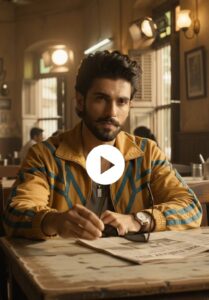
80s Bike Style Photo Prompt
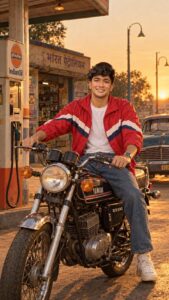
80s Retro Video Prompt
CREATE VIDEO
After pasting the prompt, select your reference photo correctly and start video generation. Once the final result is available, watch the video in its entirety to check if the character identity, vintage styling, locations, camera movements, and different scenes have been generated correctly. If necessary, the prompt can be reused with minor changes to improve the result.
How to Use Photo and Video Prompts in Google Flow AI?
The process of creating such a video in Google Flow AI can be kept quite simple. First, upload your original photo as a reference image. Then, copy and paste the complete video prompt above into the prompt area of Google Flow AI. It’s important to note that the photo and prompt serve different purposes—the photo helps the AI understand the character’s identity and appearance, while the video prompt tells the AI what kind of scenes, locations, poses, camera shots, and cinematic sequences to use. After applying the prompt, generate the video and preview the result from start to finish. If the vintage car shot, café scene, newspaper moment, or sunset sequence looks accurate, the final video can be used. If unwanted changes are visible in faces, clothing, background, or camera movement in a particular scene, the prompt can be refined with small, specific corrections and regenerated. In this way, a complete retro-style video can be created by combining different cinematic scenes from a single reference photo. For the best results, keeping the reference photo clear and using the prompt’s instructions without unnecessary changes is a more practical approach.
Final Thoughts
The most unique aspect of Retro Style AI Video is that it doesn’t just animate a simple photo, but rather transforms it into a complete cinematic visual story. Different scenes like a vintage car, old-school fashion, a café, a newspaper, a street, and a sunset combine to give the video a vintage film-like atmosphere. Creating such a video with Google Flow AI is easier because you don’t need to manually arrange and create separate images for each scene. By uploading your photo as a reference and applying the complete video prompt, the AI can generate different cinematic shots based on the same concept. If minor changes are needed in the first generation, you can improve the result by making corrections to the prompt. If you enjoy retro, vintage, and cinematic-style AI videos, this concept is definitely worth a try. Follow the steps above with your original photo to create a cinematic retro video in Google Flow AI that looks quite different and creative from your normal photo edit.