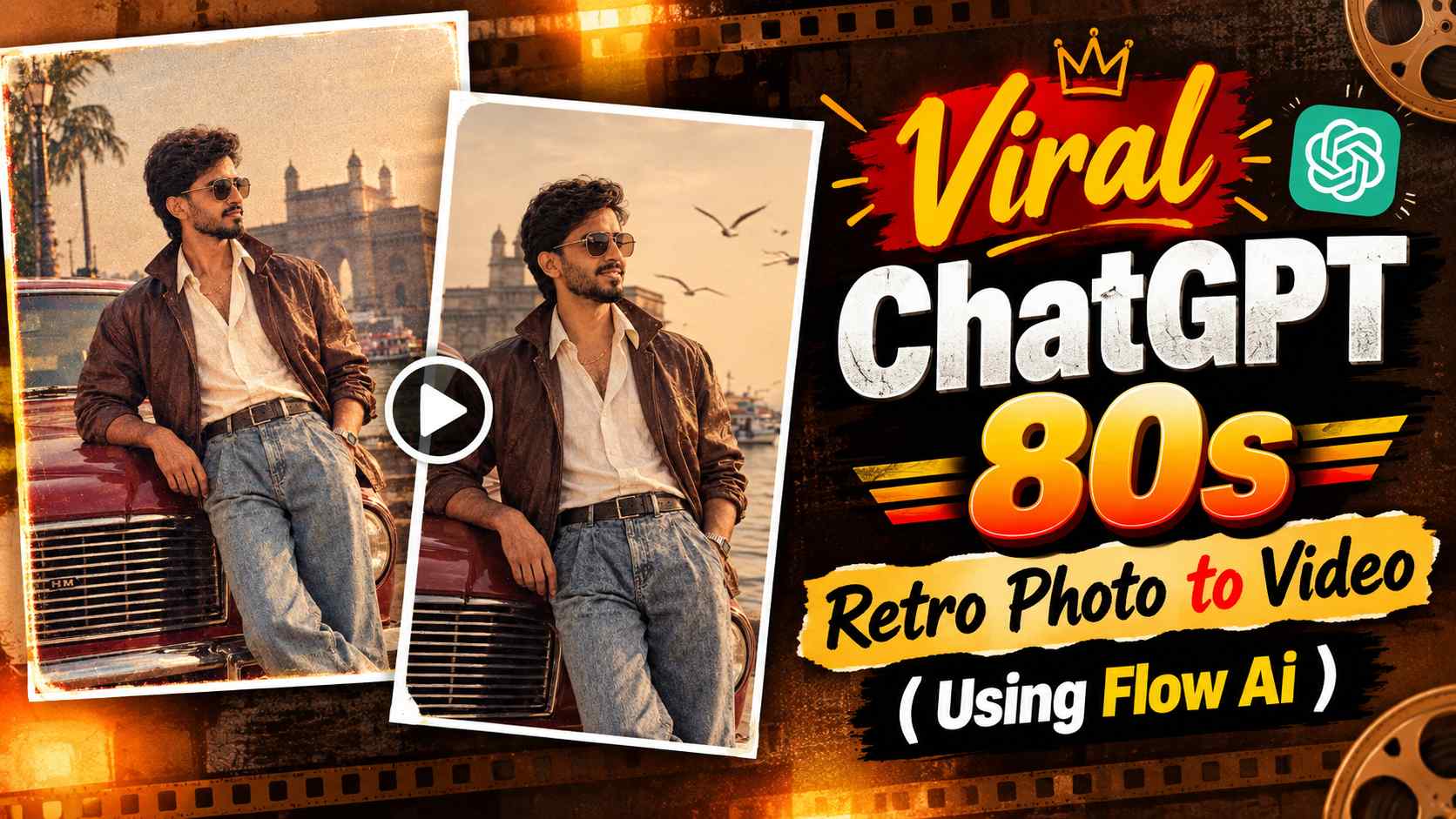
80s Photo To Video Prompt – Retro and vintage-style images have long been a popular trend in AI photo editing, but now, taking this concept a step further and transforming static AI photos into cinematic videos has become quite interesting. Especially when an image already features 80s fashion, classic cars, period architecture, warm sunlight, and a cinematic composition, converting that same photo into a video with slight natural movement can make the entire scene feel quite realistic and engaging. This entire article is based on this idea. We’ll first create an 80s retro-style AI photo using ChatGPT and then understand how to convert the same image into a short cinematic video using Google Flow AI’s image-to-video feature.
The key to this workflow is that you’ll need to use separate prompts for both photo and video. The first prompt’s task is to create a retro photograph that accurately depicts the character, outfit, classic vehicle, location, and lighting. The same final image will then be used as input to Google Flow AI to create controlled movement of the character and camera via a video prompt. This way, starting from an ordinary reference photo, a detailed 80s cinematic portrait and then a moving video of the same portrait can be created. This method can be especially useful for creators who want to create photo-to-video content for Instagram Reels, YouTube Shorts or other social media platforms. Below you will find a step-by-step structure of the entire process, where to place the Photo Prompt and Video Prompt, as well as information about customizations and corrections after generation.
How does 80s Retro Photo to Video work?
To understand 80s Retro Photo to Video, it’s important to understand that photo creation and video creation are two separate stages, but they are connected to the same visual concept. In the first stage, a new retro-style scene is created by submitting a reference photo to ChatGPT. The person’s face and overall identity in this image can be adjusted to match the reference, and the surrounding environment can be completely 80s-inspired. Details like classic cars, old-city ambiance, vintage clothing, warm sunsets, old architectural elements, and analog photography help give the static image a cinematic feel of the era. Once the photo is finalized, it becomes the starting frame for Google Flow AI in the second stage. Image-to-video generation requires the AI to understand which objects will move within the photograph and how the camera will capture the scene. For example, things like very slight natural body movement of a character, subtle head movement, slight movement in clothing, background activity or smooth camera motion can give a static frame a video-like feel. The aim here should not be to have the AI replace the entire photograph, but to add believable motion while maintaining the existing composition and character. This is why it is very important to get the Photo Prompt right first.
If the face, body, vehicle or background in the original image is already bad, it can be difficult to fix those problems during video generation. Therefore, in this workflow, a strong base image is first created and then the same image is animated with a carefully written video prompt. This two-step approach helps achieve a more controlled photo-to-video result while maintaining the visual consistency of the photo.
Create an 80s Retro Photo with ChatGPT
Before you begin the photo-to-video process, you’ll first need to prepare your base image. Choose a clear reference photo that clearly shows the person’s face and easily distinguishes facial details. After uploading the reference image to ChatGPT, paste the photo prompt below into the same conversation. This prompt will be used to create a new 80s retro-style cinematic photograph. The generated image should not only capture the person’s identity, but also clearly reflect the outfit, pose, classic car, background location, lighting, and overall composition, as this image will later be used by Google Flow AI for the video. After the photo is generated, carefully examine it. It’s important to ensure the face resembles the reference, the body proportions are natural, the hands and clothing are appropriate, the car is realistic, and there are no unwanted modern elements in the background. If you notice any minor issues in the photo, follow these correction instructions before creating the video. Once the final retro image meets your expectations, save it for the next step. This image will then be uploaded to Google Flow AI to form the basis for video generation.
Photo and Video Prompts
The two essential prompts for this entire photo-to-video workflow will be provided below. First, use the Photo Prompt in ChatGPT with a reference image to create an 80s retro-style photograph. Once the photo is complete and you like its look, upload the generated image to Google Flow AI. Then, use the Video Prompt below to convert the static retro photograph into a cinematic video. This means that both prompts should not be used simultaneously; first, create the image using the Photo Prompt, and then use the Video Prompt on the final image.
80s Retro Photo Prompt
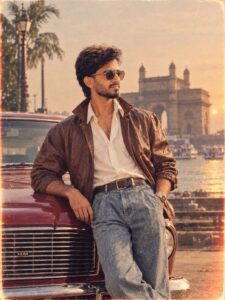
CREATE IMAGE
Google Flow AI Video Prompt
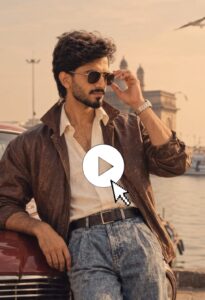
The sequence of these two prompts is the most important part of this entire process. The image created using the Photo Prompt will be the starting point for video generation, so finalize the image first and only then use it in Google Flow AI. This way, the visual style of the photo and the movement of the video will be connected to the same scene.
Customization & Correction
The AI-generated result doesn’t necessarily have to be perfect on the first try, so minor corrections may be needed at both the photo and video stages. If the face in the retro photo created with ChatGPT doesn’t match the reference image, correction instructions can clearly focus on preserving facial identity, facial features, and natural proportions. If any unnatural details are visible in the body, hands, or pose, it’s best to provide targeted corrections to make that area realistic. Similarly, if a classic car, clothing, or an unwanted object is visible in the background, a separate instruction can be given to remove or correct it. After the photo is finalized, various problems can also arise when creating a video with Google Flow AI. For example, a character’s face may change, body movement is too excessive, the shape of the car is distorted, the background changes suddenly, or the camera movement is too fast. In such cases, there’s no need to change the entire video concept. Simply identify the problematic movement and provide corrections to make it subtle, smooth, controlled, and realistic. If you want a cinematic look, it’s better to focus on natural motion rather than unnecessarily exaggerating movement. Instead of making too many corrections at once, fix the biggest problem first and then recheck the result. By gradually refining both the photo and video, you can achieve a more stable and believable final result.
Last Word
This method of turning an 80s retro photo into a cinematic video gives AI photo editing a new creative dimension. While previously, a retro-style image was simply used as a static photograph, now the same image can be transformed into a short cinematic scene by giving it movement with Google Flow AI. The most important part of this entire workflow is creating a good base photo, as this image will be used in the video generation. Therefore, first thoroughly prepare the retro image with a reference photo in ChatGPT, check its identity and visual details, and make corrections if necessary. Then, upload the final image to Google Flow AI and use Video Prompt. If both steps are followed in the correct sequence and the focus is on natural movement in the video, a simple reference photo can be used to create engaging retro photo-to-video content. This method is especially useful for creators who want to use their AI photos in Instagram Reels, YouTube Shorts, or other short-form content. With a little experimentation and the right corrections, you can transform your 80s retro image into a memorable moving scene through different camera movements and cinematic actions.