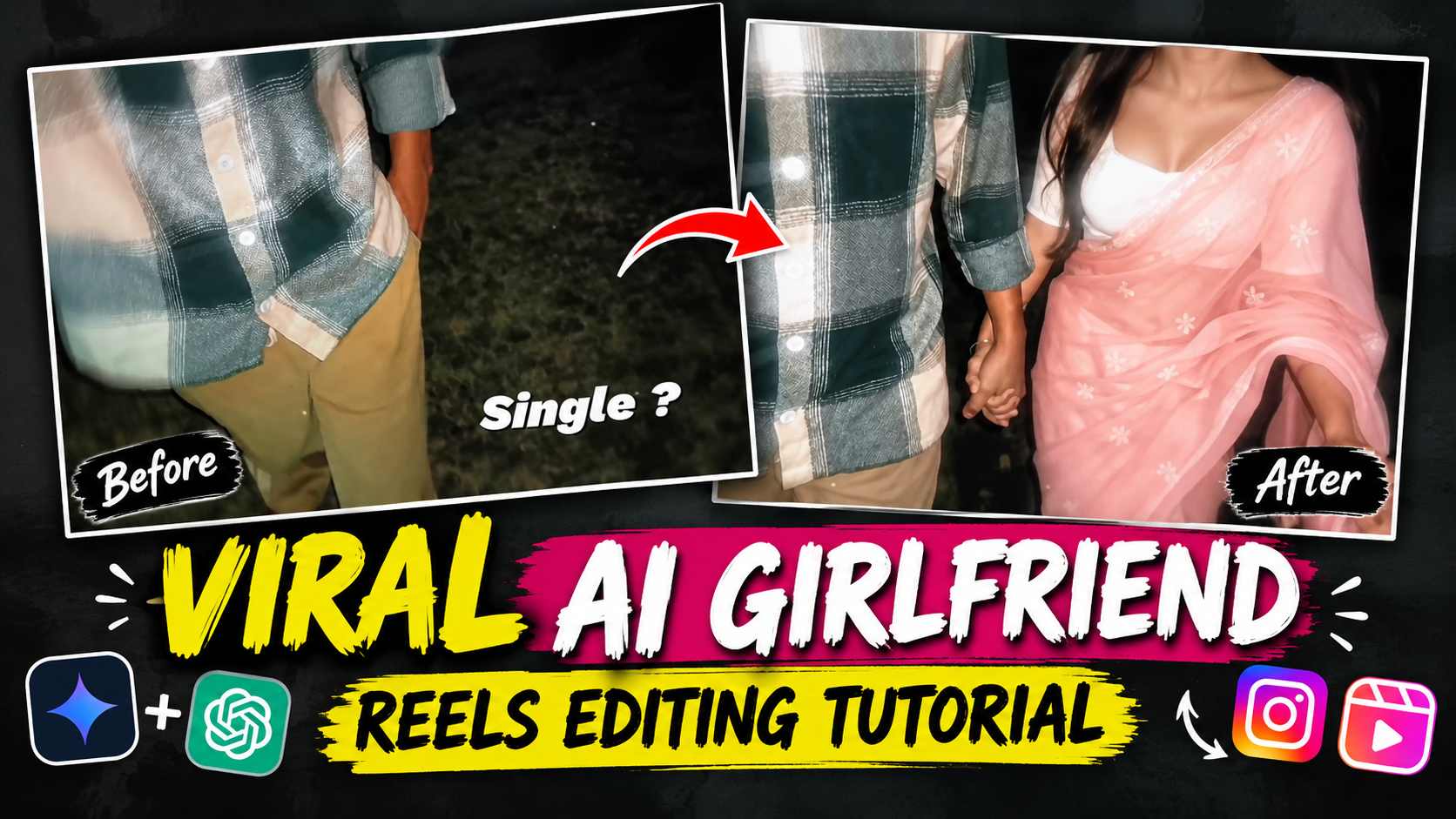
Girlfriend AI Video Editing Prompts – Romantic and cinematic videos created with the help of AI are gaining popularity these days on Instagram Reels. One such trending video begins with a boy walking alone. He extends his hand, and then a girl walks hand-in-hand with him. This way, a normal video can be transformed into a captivating Girlfriend AI Couple Video with the help of AI. If you want to create a similar edit using your own photos and videos, the process described in this article may be useful.
To create this video, you’ll need to use ChatGPT and Google Flow AI. First, take a suitable screenshot from your original video and add the girl to it using Image Prompt in ChatGPT. Next, upload the created image to Google Flow and create the video using Video Prompt. Finally, combine the video with your original clip to create the final edit.
How does Girlfriend AI Video work?
The main concept of this AI video is to show a transition from single to couple style. Initially, the boy is seen walking alone, and after his hand-holding action, the next scene shows the girl walking with him, holding hands. Timing the two scenes together creates a natural transition in the video, making the overall edit more appealing.
Three things are crucial to creating this kind of video—the right screenshot, a couple image created with ChatGPT, and a video generated with Google Flow. The screenshot should clearly show the boy’s face, hands, and body pose so the girl can be added in the same pose. Movement and camera effects are then added to the image using Video Prompt. Finally, the timing of both clips is combined in a video editing app to create a complete cinematic couple edit.
Get Image and Video Prompt Here
To create this Girlfriend AI Video, you’ll need both Image Prompt and Video Prompt. For your convenience, both prompts can be provided in one place, so you don’t have to search for them separately. Both prompts are available at the link below. Use the Image Prompt first in ChatGPT, and then the Video Prompt in Google Flow AI.
Image Prompt + Video Prompt Here
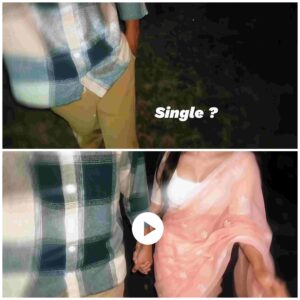
IMAGE AND VIDEO PROMPT HERE
When using Image Prompt, upload a screenshot of your video to ChatGPT. Then, copy and use the provided prompt to add a realistic girl next to the boy in the screenshot, with their hands clasped together. Once the image is created, save it. Then, upload the image to Google Flow AI and use the Video Prompt provided in the same link. This way, using both prompts, you can complete the process from creating the image to creating the video.
How to add a girl to a photo using ChatGPT?
First, import any of your videos into your mobile’s video editing app. Select the first 5-6 seconds of the video, where the boy is seen walking alone and making an action like extending his hand. Now, take a screenshot of the last frame of this section. Crop the screenshot to remove unnecessary parts, and make sure that the face, hands, and body pose are clearly visible. Choosing the correct screenshot is crucial, as this will be the basis for creating the couple image.
Now, open ChatGPT and upload the cropped screenshot. Copy the image prompt from the Image and Video Prompt link and paste it into ChatGPT. This will allow the AI to add a realistic girl to the boy in your provided image, standing with his hand in hers. Once the image is created, carefully check that the face, hands, and pose look correct. If the result is correct, save the image to your mobile. This image will be used for Google Flow AI in the next step.
How to Create a Video with Google Flow AI?
After saving the image created with ChatGPT, open Google Flow AI. Upload your created image there and copy the video prompt from the same link containing the image and video prompt. After pasting the prompt, generate the video. This prompt instructs the AI to create actions such as movement, camera angle, and walking in the image. The results may vary depending on your prompt and the AI tool used, so it’s important to review the video carefully after it’s created.
Once the video is ready, save it to your mobile phone. Then, return to the same video editing app you used to create your original video. Now, add the video created with Google Flow after the original clip. Merge the two clips so that the scene with the girl begins after the boy’s hand extension. Use a short transition or a slight blur effect, if needed, to make the transition between the two clips appear more natural.
Conclusion
After combining both clips, watch the video from start to finish to ensure the timing is correct. If the scene with the girl starts too early or late, move the clip forward or backward to position it correctly. Instead of making the transitions too long, keep them short and crisp so that the main action of the video is clearly visible. Add light animation, text, and background music as needed. For example, text like “Single?” at the beginning would work well with this concept.
For better results, use a screenshot with a clear face and clear hand position. If you notice any unwanted changes to the face, hands, or walking motion in a video created with Google Flow, re-generate the video as needed. Avoid applying excessive effects and export the video in a 9:16 vertical format for easy use on Instagram Reels and YouTube Shorts. In this way, after adding a girl in ChatGPT, creating a video in Google Flow and adding both the clips in the video editing app, your Girlfriend AI Video will be ready.