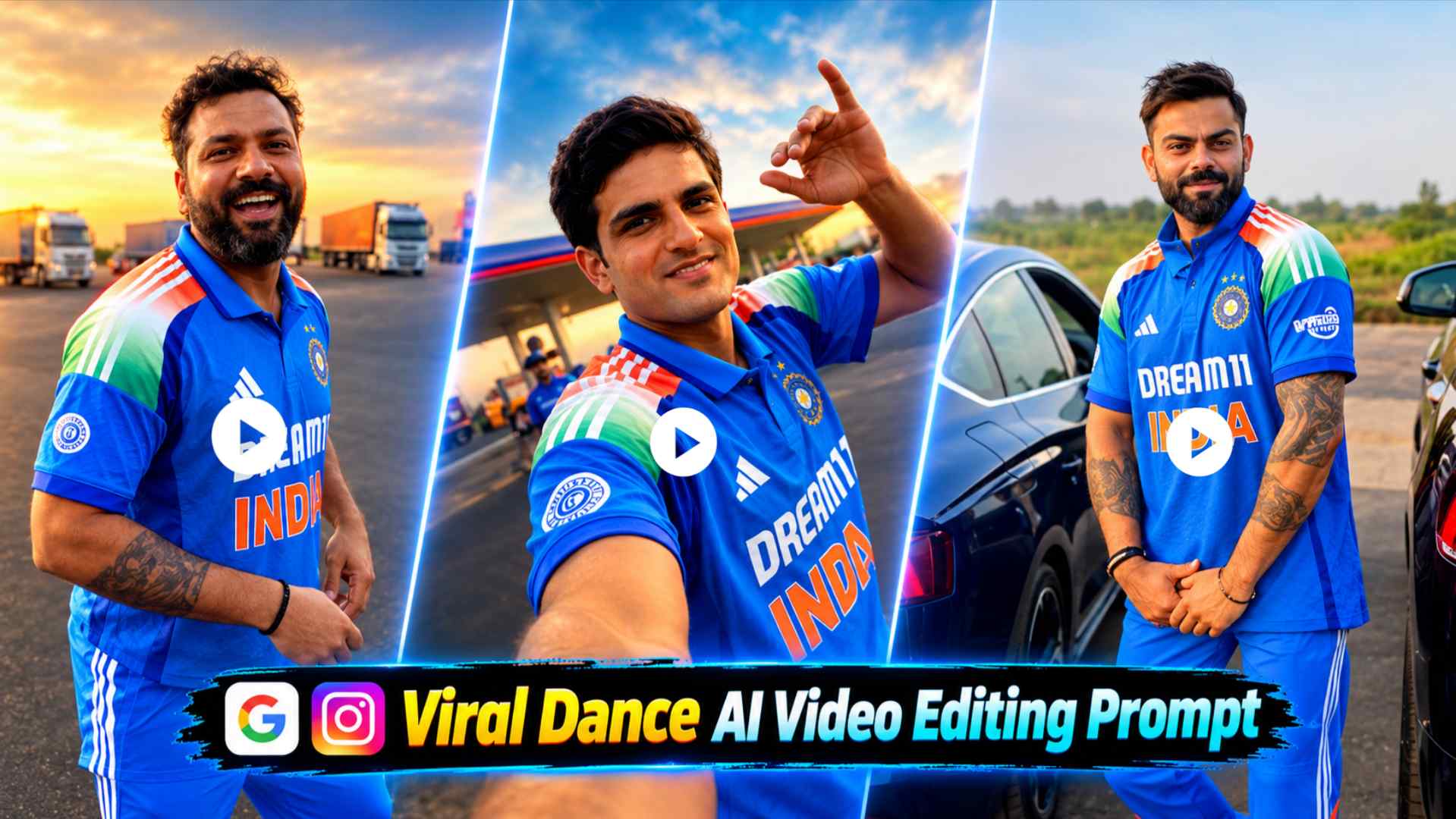
Viral Dance AI Reels Editing Prompt – AI dance edits are trending rapidly on Instagram Reels these days, in which various dance movements, camera shots, and character moments from an existing viral video are recreated with one’s own photos. A similar trending concept is seen in this Reel, where a person initially appears in front of the camera in a location such as an open parking lot/truck stop, performing dance and hand movements. The video then changes shots with movement, leading to a close-up moment where the character appears very close to the camera. Later, the scene changes again, and the character appears in a different look near a car, dividing the entire Reel into several distinct visual moments. This type of Reel doesn’t need to be re-shot yourself, as the sample video provided will serve as reference. You simply save the sample video from the website, then create clear photos of three friends or three different people, and add these four files to Google Flow. After this, by pasting the secret video prompt below and generating it, Google Flow will create a new AI Reel based on your photos, following the sequence, character movements, camera framing, and scene changes of the reference video. This article explains this entire process step-by-step, from the beginning until the final AI video is created.
What is Viral Dance AI Reels Edit?
Viral Dance AI Reels Edit means recreating the trending Reel concept using AI, replacing the various characters and their movements seen in a reference video with your own photos. In this particular video, the opening shot is in an open parking area, where the first character looks at the camera and performs natural dance movements, following the beat with their hand and body movements. The camera/scene then shifts to a close-up shot, showing the character’s face up close, smiling, and seemingly interacting with the camera. The Reel then progresses to a different character shot near a car, where the person is seen standing near the car and holding a small box or phone-box-like object. Therefore, it wouldn’t be accurate to consider this a simple dance video; it combines various character appearances, poses, locations, and camera framing into one continuous short Reel. The advantage of providing reference videos in Google Flow is that you don’t need to manually recreate all these scenes. You simply provide three of your photos and prompt the AI to create a similar movement and sequence using these people in different character moments from the reference video. This is why three high-quality photos and a valid reference video are crucial to the entire editing process.
How to Create a Sample Video and 3 Photos?
Before creating this AI Reel, the first step is to save the sample video below to your phone. This video will be used as a reference video in Google Flow, so save it in its entirety and avoid unnecessary compression or editing that could degrade the video’s quality. The individual moments are already present in the sample video, so you don’t need to cut it yourself or apply any new effects.
The Sample Video Will Be Provided Here
After saving the sample video, you need to create three separate photos. If you want to create this Reel with three friends, you can take a clear photo of each of them. The faces in the photos should be clearly visible, and try not to use too much blur, darkness, or a heavy filter. If the person’s face and hairstyle are clearly visible in the photo, it will be easier for the AI to understand it as a reference. Keep the three photos separate, as these three images will be used in Google Flow along with the reference video. You don’t need to create the same poses as the reference video in your photos; normal, clear photos can also be used. After this step, you should have four things ready—a full sample video and photos of three different people. These four references will be added to Google Flow in the next step to generate the full AI Reel.
How to Add Video and 3 Photos to Google Flow?
Now open Google Flow and first add your saved sample video for video generation. Next, upload your three photos to the same generation/project. Use the sample video as the main reference, and the three photos as references for the characters you want to see in the generated Reel. After uploading the three photos, make sure that all the images are visible clearly and that no face in any photo is too small, blurry, or cut out. Next, paste your secret AI video prompt into the prompt section. This prompt will tell Google Flow how to follow the different scenes, dance movements, camera angles, character positions, and transitions in the reference video, and how to use the people in your three photos in those moments. Therefore, simply uploading the video and photos isn’t enough; the prompt is also a very important part of this workflow. Once the sample video and all three photos are successfully uploaded and all references are visible correctly, then copy and paste the actual prompt given below into Google Flow and select the Send/Generate option for generation.
How to Create a Viral Dance AI Reel from a Secret Prompt?
Now comes the most important part of this entire workflow—the Secret Video Prompt. This prompt will be used to explain to Google Flow the relationship between the reference video and the uploaded photos. It explains how to display the three uploaded people in the newly generated video, following the different character moments and movements from the reference video. The goal isn’t just to replace people’s faces, but to recreate the dance movements, body actions, camera framing, close-up moments, location changes, and individual shots in one continuous AI video while maintaining the overall sequence of the reference reel. Therefore, the actual prompt below will be the instructions to paste into Google Flow after uploading the sample video and the three photos.
Dance Ai Reels Prompt Here
After pasting the prompt, click Send/Generate in Google Flow and let the video finish. After generation, be sure to watch the entire video from beginning to end. First of all, check whether the initial dance movement is coming as per the concept of the reference video, then see whether the close-up shot is natural and whether the character and environment in the car scene ahead are looking correct or not. Also carefully check the faces of all the three people, because sometimes unwanted changes can occur in facial features, hairstyle, hands or clothing during AI generation. If the first result is not perfect, then there is no need to change the entire workflow; you can re-generate by giving a small correction prompt for the same specific problem. After getting the correct result, save the generated video. After this, the same AI-generated clip can be used on Instagram Reel, YouTube Shorts or any other short-video platform.
Last Word
The entire process of creating this Viral Dance AI Reels Edit may seem complicated, but if done correctly, the workflow is quite straightforward. First, save the sample video provided on the website, as this will be the main reference for the entire AI Reel. Next, create clear photos of three friends or three different people and upload these three photos along with the sample video to Google Flow. Paste the secret video prompt to initiate generation. Google Flow will interpret the reference video’s different dance movements, character positions, close-up shots, camera framing, and scene changes to generate a new video with the people in the uploaded photos. After receiving the final result, it’s important to watch the entire video and check the consistency of faces, movements, transitions, and different scenes. If a minor problem is noticed in any one scene, the result can be refined by providing correction instructions for that particular area. This way, you don’t need to shoot or recreate the entire dance sequence yourself and can give a new look to an existing trending Reel concept with just three of your photos using AI.